
Moving and backup
How do you back up iPhone photos without iCloud?

Import them to a Mac with the Photos app, to a Windows PC with the Apple Devices app, or copy them to a USB drive or SD card with the Files app. Google Photos for iPhone also backs up photos to your Google Account. Each copy is only as private as the place it lands, and none of them is end-to-end encrypted by default.
iCloud Photos is the easy default, but it is not the only way to keep a second copy. Some people are out of iCloud space, some want a copy they hold in their hands, and some want photos out of the cloud on purpose. This guide covers four ways, with Apple’s and Google’s own steps. We checked them on 2026-10-09.
Before you start: the iCloud Photos question
If iCloud Photos is on and Optimize iPhone Storage keeps smaller versions on the phone, your iPhone may not hold the full-size originals. Apple says that before you import to a PC, “you must download the original, full resolution versions of your photos to your iPhone”. Check that you have enough free space first.
If you want to stop using iCloud Photos on this iPhone and keep the photos:
- Download your originals, and make sure the iPhone has room for them.
- Open Settings, tap your name, then iCloud.
- Under Saved to iCloud, tap Photos.
- Turn off Sync this iPhone.
- Choose Download Photos & Videos.
Apple warns that if you choose Remove from iPhone instead, the photos leave the phone, and that optimized photos “are not the original resolution”.
Option 1: a Mac
- Connect the iPhone to the Mac with a cable.
- Open the Photos app on the Mac. The Import screen shows the photos on the iPhone. If it does not, click the iPhone’s name in the sidebar.
- Unlock the iPhone if asked, and tap Trust if the Trust This Computer alert shows.
- Choose an album to import into.
- Click Import Selected or Import All New Items.
Option 2: a Windows PC
- Install the Apple Devices app from the Microsoft Store.
- Connect the iPhone and unlock it.
- Tap Trust or Allow on the iPhone if it asks.
- Import with the Microsoft Photos app. Apple points to Microsoft’s own instructions for this step.
Option 3: a USB drive or SD card
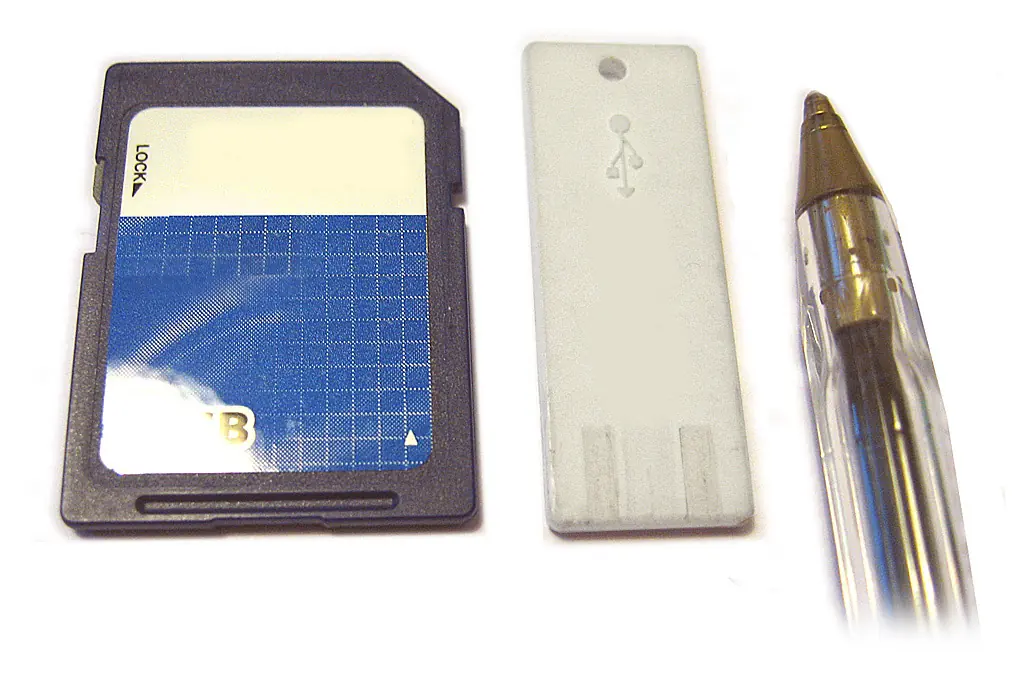
Apple’s iOS 27 guide lets the Photos app export straight to an external drive or a memory card. You may need a cable adapter or a card reader.
- Connect the drive or card to the iPhone.
- Open Photos and select the photos and videos.
- Tap the Share button, then Export Unmodified Original.
- Tap the drive below Locations, then tap Save.
Apple notes two details. Edited photos export as the unmodified original. And photos in the Hidden album “won’t be transferred if the album is locked”. To include them, Apple says to turn off Use Face ID (or Touch ID or Passcode) in Settings, Apps, Photos for the export, then turn it back on.
On iPhone models with USB-C, the Files app can also erase a drive to APFS, ExFAT or MS-DOS (FAT). Touch and hold the drive under Locations in Files and tap Erase. Erasing deletes everything on the drive.
Option 4: Google Photos
- Install Google Photos and sign in.
- Tap your profile picture, then Google Photos settings, then Backup.
- Turn on Backup.
Google says backup runs from newest to oldest and works best with the app open and the phone plugged in. It uses Google Account storage, which Gmail and Drive share. Read does Google Photos scan your photos before you put private photos there.
How private is each copy?
| Backup | Who can open it | Encrypted by default |
|---|---|---|
| iCloud Photos, standard data protection | You, and Apple can decrypt it for you | Yes, but Apple holds the keys |
| A Mac or PC library | Anyone who can log in to that computer | Only if the disk is encrypted |
| A full iPhone backup on a computer | Anyone with the computer | No. Apple says turn on Encrypt local backup |
| A USB drive or SD card | Anyone who holds it | No |
| Google Photos | You, through your Google Account | Encrypted in transit. Google says Google Photos items are not encrypted with your screen lock |
For iCloud’s two modes, read is iCloud Photos end-to-end encrypted. For what a plugged-in computer can see, read can a computer see hidden photos.
A backup for the private photos only
Most people want two things at once. One is an ordinary backup for everyday photos. The other is a private one for the few hundred they would never want on a shared laptop. York Vault does the second job. It encrypts each item on your phone. Then it backs up every item to your own iCloud on iPhone, or your own Google Drive on Android, at no cost. The backup file is unreadable without your code or your 12-word recovery key, and we cannot open it. See encrypted backup and how the York Vault backup works.
York Vault also makes an encrypted backup file you can keep on a drive or a computer, with its own password. Download York Vault.
Questions people ask
Can I back up my iPhone photos without iCloud?
Yes. Apple supports importing photos to a Mac with the Photos app and to a Windows PC with the Apple Devices app. The Files app can copy photos to a USB drive or an SD card. Google Photos for iPhone backs up to your Google Account instead of iCloud.
How do I turn off iCloud Photos without losing my photos?
First download your originals and make sure you have space. Then open Settings, tap your name, tap iCloud, tap Photos under Saved to iCloud, and turn off Sync this iPhone. Choose Download Photos & Videos to keep a copy. Apple warns that if you do not download, the optimized photos are not full resolution.
Do I need to download originals before I import to a PC?
Yes, if iCloud Photos is on. Apple says you must download the original, full-resolution versions to your iPhone before you import to a PC. Otherwise the phone may hold only smaller versions, and those are what the import copies.
Is a computer backup of my photos private?
Only as private as the computer. Apple says local iPhone backups are not encrypted by default, and imported photos sit in the computer's photo library. Use a password on the computer and turn on Encrypt local backup if you make full device backups.
Does Google Photos keep my iPhone photos private?
Google stores them in your Google Account, which shares space with Gmail and Drive. Our guide on whether Google Photos scans your photos covers what Google does with them. If you want a backup no company can open, encrypt the photos before they upload.
Sources
- Transfer photos and videos from your iPhone or iPad to your Mac or PC (Apple Support) · checked Oct 9, 2026
- Import and export photos and videos on iPhone (iPhone User Guide, iOS 27) · checked Oct 9, 2026
- Transfer files from iPhone to a storage device, a server, or the cloud (iPhone User Guide, iOS 27) · checked Oct 9, 2026
- How to turn off iCloud Photos (Apple Support) · checked Oct 9, 2026
- About encrypted backups on your iPhone, iPad, or iPod touch (Apple Support) · checked Oct 9, 2026
- About the 'Trust This Computer' alert message (Apple Support) · checked Oct 9, 2026
- iCloud data security overview (Apple Support) · checked Oct 9, 2026
- Back up or restore data on your Android device (Android Help) · checked Oct 9, 2026
- Back up photos and videos (Google Photos Help, iPhone and iPad) · checked Oct 9, 2026


